

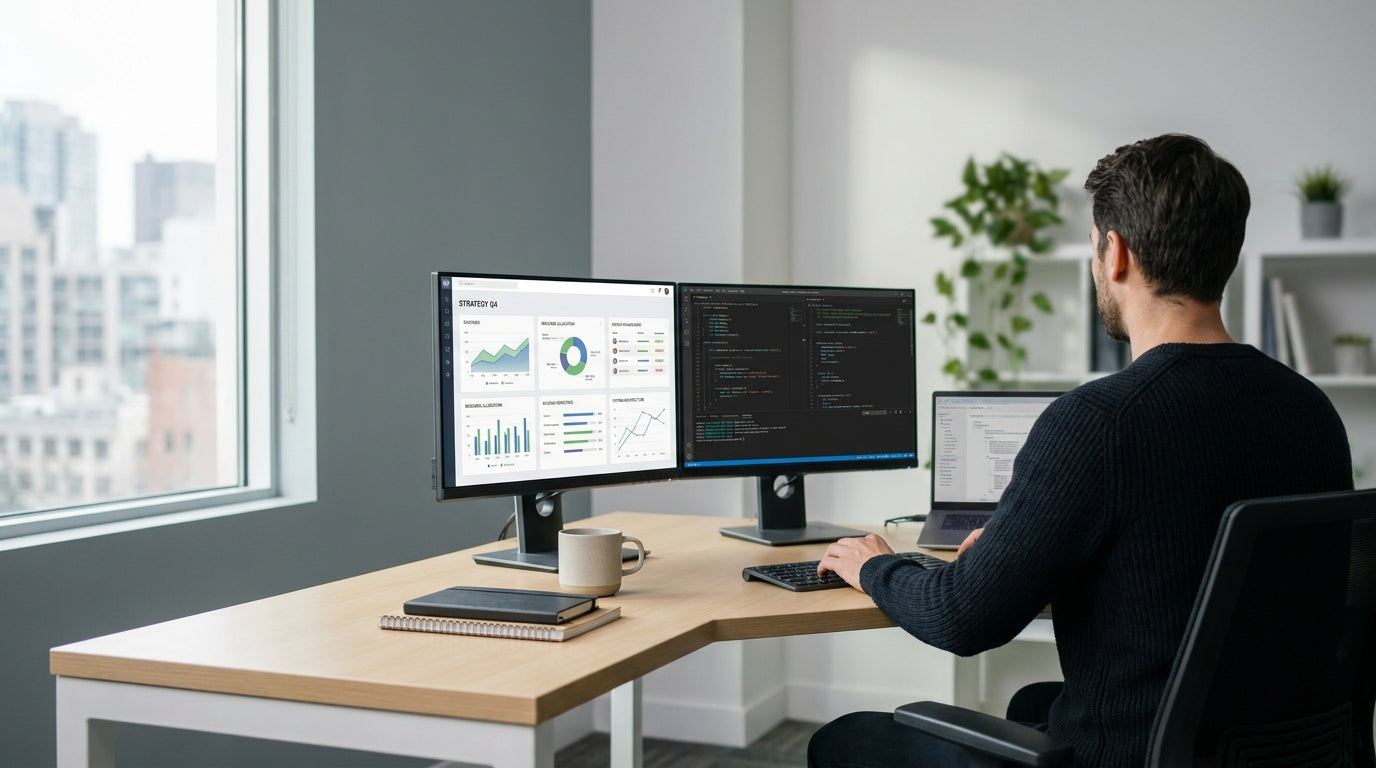
Planning Your Corner Layout
Before you start moving furniture, it pays to map out your corner space properly. A little planning helps you avoid cramped layouts and awkward gaps behind the desk.
Begin by measuring both walls that form the corner, including skirting boards, power points and any windows or doors that might affect placement. Note the location of power outlets, data points and natural light, as these will influence where your screens, task lighting and storage sit. If you’re working with a tight area, look at compact L-Shaped Desks or streamlined Corner Workstations that maximise benchtop space without overwhelming the room.
It’s also worth thinking about how you move through the room. Leave at least 900 mm of clear space behind your desk for your chair and for walking, especially if you’re using ergonomic Task Chairs with a larger base. Sketching a quick floor plan on paper or using a simple room-planning app can help you test arrangements before committing to one.
For a home set-up, factor in any existing storage or decor, such as bookshelves or filing cabinets. You may find that an L-shaped configuration works best when paired with compact Home Office Desks and wall-mounted shelving, rather than bulky freestanding units that eat into your circulation space.
Choosing the Best Orientation
The way you orient the desk affects comfort, privacy and productivity. Think about where you’ll sit and what you’ll face during the workday.
There are two main options: placing one side of the desk directly against both walls or floating one return slightly away from the wall to create a more open footprint. If you prefer to face into the room, position the longer run of the desk along the wall and have the shorter return act as a modesty panel across the opening. This approach is common in Corner Office Desks used in private offices, where eye contact with visitors is important.
If you’re sharing an open-plan workplace, consider orienting the L so that the solid side faces high-traffic areas, giving you a bit more privacy and blocking visual distractions. Pairing an L-shaped workstation with dedicated Single Person Workstations for colleagues can create consistent sightlines and make it easier to plan team zones. In smaller home offices, you may prefer to face the window with one arm of the desk, while using the other arm for printers and storage.
Also think about the future. If you might add extra monitors or a sit-stand attachment later, make sure the orientation leaves enough clear wall space and access to outlets. This is particularly important if you plan to fit Monitor Arms, which need solid fixing points and adequate clearance behind the desk for movement.
Balancing Workspace and Storage
An L-shaped configuration naturally separates your primary work area from secondary tasks. Use this to your advantage by zoning each side with a clear purpose.
Set up your main working zone—keyboard, mouse and primary screen—on the longer side of the desk where your elbows can rest comfortably and your feet sit flat. Keep this section as clutter-free as possible so you can spread out documents or use a notebook without shifting piles of paperwork. The return can then become your support surface for printers, reference materials, docking stations or personal items.
To avoid eating up legroom, opt for compact under-desk storage rather than bulky cabinets. Mobile Pedestal Drawer Units are ideal, as they can slide under either arm of the desk and be repositioned as your needs change. In shared offices, this also lets you reconfigure Corner Workstations quickly when teams grow or move.
For home offices, a mix of under-desk drawers and wall-mounted shelves usually provides enough storage without crowding the room. If you’re working on a smaller scale, pairing a compact L-shaped unit with streamlined Home Office Desks elsewhere in the room can give you separate areas for focused work and more casual tasks like reading or planning.
Optimising Ergonomics and Comfort
A well-arranged corner desk should support your body, not strain it. Good ergonomics helps prevent fatigue and discomfort over long days.
Start with your chair: ensure your Task Chairs are adjusted so your knees are at roughly 90 degrees and your feet rest flat on the floor. Then set your desk height so your forearms sit parallel to the work surface when typing. If your desk is fixed-height, you can fine-tune with chair adjustments and a footrest if needed.
Monitor position is just as important. Your primary screen should sit directly in front of you, with the top of the screen around eye level and about an arm’s length away. If you use multiple screens, consider installing Monitor Arms so you can easily angle and align them without sacrificing desk space. This is particularly useful on Corner Office Desks, where you may need to curve screens slightly around the corner for a comfortable viewing arc.
Lighting also plays a role. Avoid placing your primary monitor directly in front of a bright window, which can cause glare, and use a task lamp to supplement overhead lights if needed. When planning a workstation at home, balance ergonomic positioning with how the room looks and feels so your corner set-up is both practical and inviting for long-term use.
Managing Cables and Tech in Tight Corners
Corners tend to attract cable clutter, especially around multi-monitor or dual-device set-ups. A clean arrangement makes your workspace look more professional and easier to clean.
Route power leads, charger cables and network cords along the back edge of the desk, using under-desk trays or clips. Investing in dedicated Cable Management solutions keeps cords off the floor and reduces trip hazards, which is especially important where L-Shaped Desks meet in a tight angle. Label each cable near the power board so you can quickly identify what belongs to your monitor, laptop, or docking station.
Tech placement matters too. Position your modem, docking station and any desktop towers on the return side of your desk or on a nearby shelf to free up legroom and airflow. If you’re using adjustable Monitor Arms, make sure there is enough slack in your cables to allow the arms to move without strain, but not so much that loops hang down and catch on your knees.
Finally, think about access. In open-plan offices where Single Person Workstations and Corner Workstations sit side by side, keep shared power boards somewhere reachable without crawling under desks. In a home office, a small cable box on the floor or mounted under the return can hide power boards neatly, keeping your corner workspace tidy and easy to live with.


