

Understanding Screen Heights and Ergonomics
Getting your desk screens to the right height is essential for comfort, posture and productivity. Poorly positioned screens can cause neck strain, headaches and sore shoulders over time.
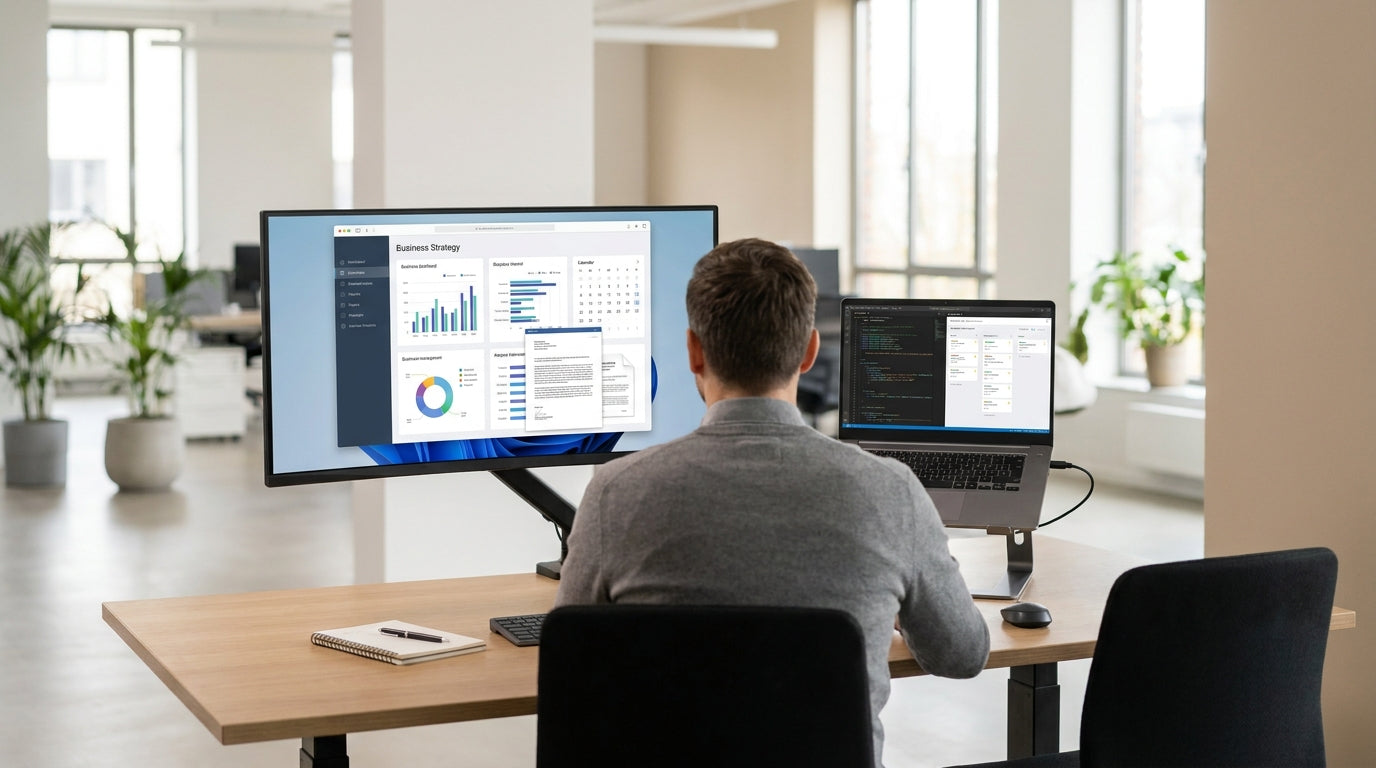
Ergonomists generally recommend that the top of your monitor sits roughly at, or just below, eye level when you are sitting or standing in a neutral position. Your eyes should naturally fall about one-third of the way down the screen, which helps keep your neck relaxed instead of craning up or dropping forward. This applies whether you’re using a single monitor or multiple desk-mounted screens around a workstation.
Distance matters as much as height. Aim to position your screens about an arm’s length away, then fine-tune based on your vision and task. If you use a laptop with an external monitor, consider raising the laptop on a riser and using a separate keyboard so both screens can sit at similar, ergonomic heights.
Your desk layout also plays a role. Fixed-height Straight Desks and compact Home Office Desks can still support good ergonomics if you adjust your chair and screens correctly. For more flexibility, Height Adjustable Workstations make it easier to set your screens for both sitting and standing without compromising posture.
Choosing the Right Desk, Arms and Partitions
The type of desk, monitor arm and partition system you choose will determine how easily you can achieve proper screen height. Start with furniture and hardware that allow for simple, precise adjustments.
For individual setups, look at Single Person Workstations that give you enough depth for correct viewing distance plus space for keyboard and documents. If you share space or collaborate closely, 2 Person Workstations and Corner Workstations help separate each user’s screens while keeping everything within comfortable reach.
Quality Monitor Arms are the key to fine-tuning height, tilt and distance without constantly stacking books or makeshift risers. Gas-lift and articulated arms let you adjust each screen in seconds, which is particularly useful if you switch between sitting and standing or share a desk with another person of a different height. Dual or multi-arm configurations are ideal when you need each monitor at a slightly different level for specialised work.
Acoustic and visual separation can improve focus when you add Desk Mounted Partitions behind or beside your screens. These partitions can anchor clamp-on monitor arms securely while also hiding cables and helping to define personal space in open-plan offices. For finishing touches such as brackets, clamps or cable clips, explore dedicated Screen Accessories that are designed to work with partitions and arms rather than improvising with unsuitable hardware.
Setting Up Single and Dual Screens at Different Heights
Once you have the right hardware, you can start adjusting your single or dual monitors to suit your tasks. Think about your primary screen first, then position any secondary displays around it.
For a single monitor, align the centre of the screen directly with your body so you are not constantly twisting your neck. Adjust your Monitor Arms so the top bezel is level with your eyes, then tilt the screen slightly back (around 10–20 degrees) to reduce glare. If the monitor is fixed to a partition track, use the height slots and any built-in vertical adjustment to achieve the same effect.
With dual screens, choose which display is your primary work area. Keep that directly in front of you and place the secondary monitor slightly off to the side and at a very similar height. If the two screens are different sizes or resolutions, you may need to mount one slightly higher or lower on the arm so that the visible display areas line up, making it easier to move your eyes and mouse between them without strain.
Shared desks and compact setups such as Home Office Desks and smaller Single Person Workstations benefit especially from dual-arm solutions. In team environments using 2 Person Workstations, adjust each user’s primary screen first, then coordinate the secondary screens so they don’t block sightlines across the desk or crowd the central partition.
Combining Screens with Sit-Stand and Corner Layouts
Standing desks and corner layouts add complexity, but also flexibility, to your monitor height setup. The goal is to keep your neck and shoulders relaxed whether you are seated or on your feet.
When using Height Adjustable Workstations, adjust the desk to elbow height first, then move your screens to match your eye level in both positions. It’s worth marking ideal heights on your Monitor Arms or on the partition track so you can quickly return to those settings after making changes. If you regularly alternate between sitting and standing, choose arms with a generous vertical range and smooth movement to encourage frequent micro-adjustments.
Corner layouts, including L-shaped Corner Workstations, often suit users who need multiple screens and extra bench space. Try placing your main monitor in the centre of the corner, with secondary screens angled toward you on either wing. Use Desk Mounted Partitions along the edges to mount screens without sacrificing desk depth, and enlist Screen Accessories to route cables cleanly so they do not snag when the arms move.
In open-plan offices, combining sit-stand benches, corner layouts and partitions can create a mix of privacy and collaboration. For instance, two sit-stand desks can be paired as a back-to-back station, similar to 2 Person Workstations, with shared partitions supporting multiple adjustable screens. This arrangement lets each user adjust their monitor heights independently without impacting the other’s setup.
Fine-Tuning, Accessories and Ongoing Adjustments
Once everything is mounted, small refinements make the biggest difference to comfort. Keep testing and tweaking rather than treating your first setup as final.
Check in with your posture through the day: if you notice yourself leaning forward, lifting your chin or tilting your head to one side, it usually signals that your screens are too low, too high or off-centre. Micro-adjust using your Monitor Arms instead of shifting your body to match the screens. On shared benches such as Straight Desks in hot-desking areas, build in a quick “screen reset” routine at the start of each day so each user can adapt the monitor height to their needs.
Thoughtful use of Screen Accessories can keep your setup safe and tidy. Cable management clips prevent cords from pulling on your screens when arms are moved, while additional brackets, posts and clamps allow you to add extra monitors or raise existing ones as your role evolves. If your workspace includes Desk Mounted Partitions, make sure the accessories you choose are compatible with the partition thickness and mounting system to avoid instability.
Finally, consider how your monitors interact with the rest of your furniture. In home offices, pairing Home Office Desks with compact arms and partitions can prevent visual clutter creeping into living areas. In larger commercial spaces, aligning monitor heights consistently across Single Person Workstations, 2 Person Workstations and Corner Workstations creates a more orderly appearance while supporting staff comfort. Regularly revisiting your setup ensures your desk-mounted screens continue to work with you, not against you, as your work and technology change.


