

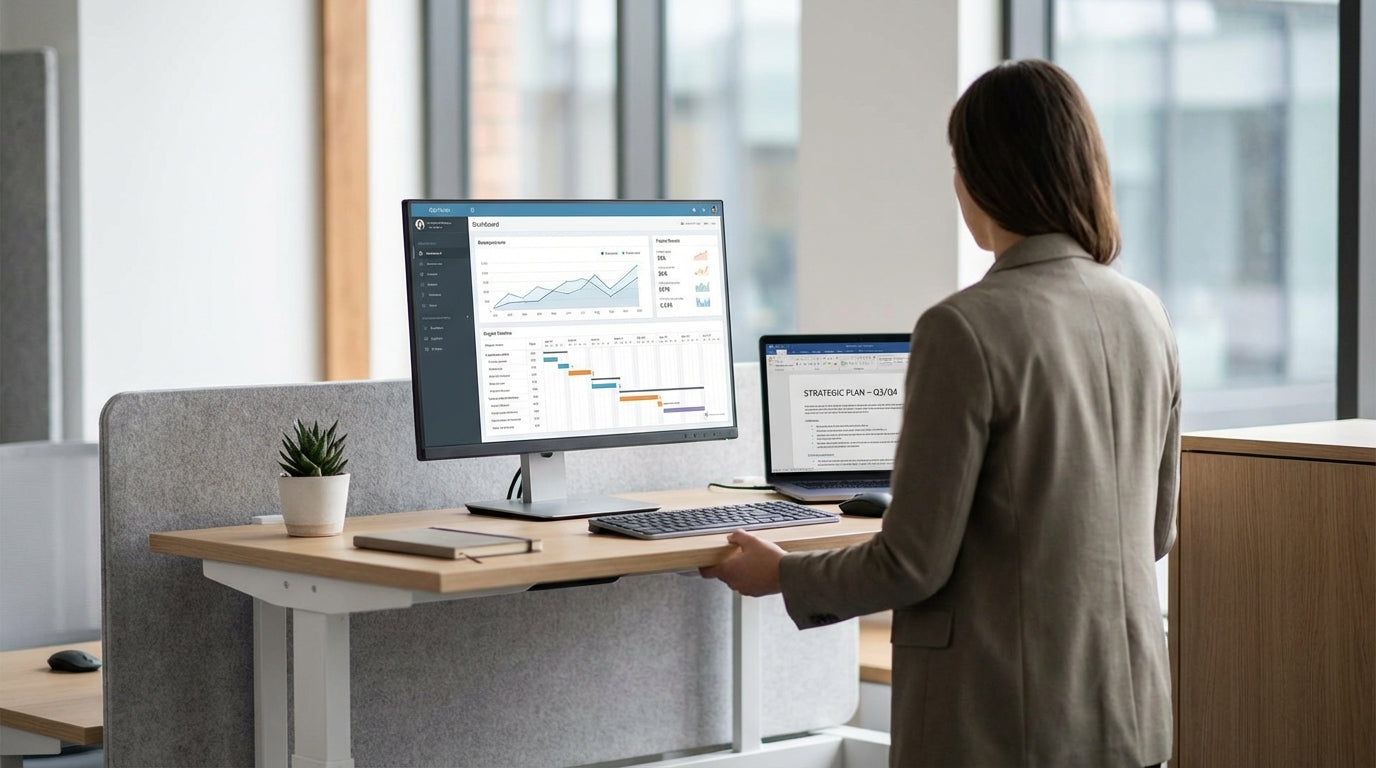
Why an Adjustable Workstation Matters for Modern Work
A well‑planned adjustable desk setup can dramatically improve comfort, focus, and productivity. Getting the details right from the start helps you avoid aches, strain, and costly trial and error.
Australian workplaces are seeing a rapid shift from fixed desks to flexible, sit–stand layouts. Staff expect to move between sitting and standing across the day, and employers are under pressure to meet WHS responsibilities around ergonomics. A thoughtfully designed workstation gives each person control over their posture, reach, and screen position, rather than forcing them to adapt to the furniture.
Before you buy anything, consider who will use the workstation, what tasks they’ll complete, and how often they need to change position. A designer drafting plans has very different needs from a call‑centre operator or a hybrid worker who spends half the week at home. Matching the workstation style to the work style lays the foundation for an efficient, safe, and future‑proof office.
Start your planning with the core furniture. Browse dedicated Height Adjustable Workstations to see how different frames, tops, and configurations support both individual and team environments. This overview will make the later steps—ergonomic adjustments, cable routing, and accessory choices—much easier.
Choosing the Right Layout and Workstation Type
The layout you choose should support how people collaborate, concentrate, and move through the space. Different frame and top configurations can be tailored to single users or entire teams.
For private offices, home setups, or roles requiring deep focus, compact Single Person Workstations are usually the best starting point. They provide a dedicated footprint that’s easier to tune ergonomically, with enough room for a large monitor, keyboard, documents, and personal storage. When fitted with a sit–stand frame, they give the user full control without impacting nearby colleagues.
Open offices and project‑based teams benefit from shared clusters that keep people close without feeling cramped. Consider 2 Person Workstations, 3 Person Workstations, or larger 4 Person Workstations for pods where staff work on related tasks. These systems often share central cable channels and privacy screens, reducing clutter while still allowing each person to adjust height independently. This combination of shared infrastructure and individual control is ideal for modern agile teams.
If your floorplan has awkward corners or you need extra surface area for plans, samples, or multiple screens, L‑shaped designs are worth exploring. Corner Workstations make excellent use of wall space, giving users a primary zone for everyday work and a secondary return for paperwork, printers, or reference materials. Many can be paired with height‑adjustable bases or retrofitted frames, so you don’t have to sacrifice flexibility to gain extra surface area.
Once the general layout is clear, refine your selection with specific Workstation Components such as modesty panels, screens, and return units. Components let you fine‑tune privacy, storage, and cable routing while staying consistent with your chosen system. A modular approach also makes it easier to reconfigure work areas as the team grows or roles change over time.
Dialling In Ergonomics: Height, Posture, and Monitor Position
Correct ergonomic setup is what turns a height‑adjustable frame into a genuinely healthy workstation. Small adjustments to desk height, chair settings, and monitor placement have a big impact over long days.
Start by adjusting the desk for seated work. Your elbows should rest roughly at 90 degrees with forearms parallel to the floor while typing, and your shoulders relaxed rather than hunched. Pairing the desk with a supportive Task Chairs range that offers seat height, backrest, and lumbar adjustments helps you maintain a neutral posture. Your hips should sit slightly higher than your knees, and your feet should rest flat on the floor or a footrest.
For standing work, raise the surface until your elbows are again at a comfortable right angle. Avoid leaning heavily on the desk or locking your knees; instead, keep a soft bend in the legs and shift weight gently between feet. Many users find it helpful to alternate between sitting and standing every 30–60 minutes rather than making a single long switch. This regular variation reduces fatigue without disrupting concentration.
Screen position is critical for preventing neck and eye strain, especially with dual‑monitor or ultrawide setups. The top of your main screen should sit close to eye level, with the centre of the display slightly below it. Using dedicated Monitor Arms allows you to set the precise height and distance for each display, then move them effortlessly when you change from sitting to standing. Articulated arms also free up valuable desk space and make shared workstations easier to adjust for different users.
Don’t overlook smaller peripherals. Keep the keyboard and mouse close enough that you aren’t reaching forward from the shoulders, and consider a compact keyboard if desk depth is limited. Over time, revisit these adjustments: as tasks change or you add equipment, your optimal heights and distances may shift slightly. A quick monthly check‑in on posture and setup is often all that’s needed to stay comfortable.
Managing Cables, Power, and Accessories
Untidy cables can snag when the desk moves and create safety risks. A clean, organised setup keeps everything working smoothly as you change height.
When configuring a sit–stand system, plan your power and data routes before you load the desk with equipment. Group power boards, chargers, and docking stations under the worktop and run leads in flexible vertical channels. Quality Cable Management solutions—such as trays, umbilicals, and clip‑on guides—keep cords clear of moving legs and prevent plugs pulling out as the desk travels up and down. This is especially important in multi‑user pods where several computers share the same power feed.
Use grommets or cut‑outs in the desktop to feed cables down into trays, avoiding long loops hanging behind the workstation. Keep a little slack in each lead so monitors and laptops can be repositioned without strain, but not so much that cords pool on the floor. Labelling both ends of important cables may feel over‑the‑top, yet it saves significant time when troubleshooting or upgrading equipment later.
Beyond power and data, consider where to place document trays, phone stands, docking stations, and any specialised tools. The items you use most should sit within easy reach, roughly in the zone you can access without leaning forward from the chair. Many Workstation Components such as modesty panels, shelves, and under‑desk storage can be added to keep the work surface clear without reducing accessibility. Clutter‑free surfaces make transitioning between sitting and standing faster and more intuitive, encouraging staff to actually use the adjustability you’ve invested in.
Implementing, Training, and Maintaining Your Setup
A successful rollout involves more than installing new furniture. Staff need guidance to use the equipment properly and keep it performing at its best.
When you first install new sit–stand desks or clusters, walk each user through their initial setup. Show them how to adjust height, use any memory presets, and set their chair correctly in both sitting and perching positions. If you’ve implemented pods using 2 Person Workstations, 3 Person Workstations, or 4 Person Workstations, clarify which controls belong to which user so people don’t accidentally change their neighbour’s settings. Simple printed guides or short onboarding sessions make a big difference, particularly in larger teams.
Encourage people to build movement into their workday. This might mean standing for short tasks like phone calls, then lowering the desk for deep focus work, or alternating positions at set times. Where individuals have highly specialised tasks, such as design or analysis on multiple screens, reinforce how Monitor Arms and supportive Task Chairs contribute to comfort and accuracy. Over a few weeks, most staff will find a rhythm that suits their body and workload.
Regular maintenance extends the life of your investment. Wipe down surfaces, check that lifting columns operate smoothly, and ensure that Cable Management systems haven’t loosened or filled with excess cords. Inspect your Workstation Components periodically to confirm screens, brackets, and storage are still firmly attached and aligned. If you’re expanding the office, keep to the same family of Height Adjustable Workstations and complementary Single Person Workstations or Corner Workstations to maintain a consistent, professional look.
By combining well‑chosen furniture with clear guidance and ongoing checks, you create a flexible environment that supports health and productivity for years to come. An adaptable workstation system can evolve as roles change, technology advances, and your business grows—without the need for constant replacement or major redesign.


