

Planning your hybrid meeting layout
Before you roll a single table into place, map out how people will use the room. A clear plan prevents clutter, awkward camera angles, and audio issues.
Start by confirming your typical group size, how many will join online, and what kinds of sessions you run: presentations, workshops, or training. This helps you decide whether you need static Meeting Tables as a centrepiece, or fully flexible layouts using Mobile Tables and Folding Tables. Sketch a few options: U-shape for collaborative discussions, classroom style for learning, or clusters for group work. Having two or three go‑to configurations makes changeovers quick and stress‑free.
Think about sightlines: everyone in the room should see the main screen and camera without twisting or craning their necks. Leave clear walkways so people can move to microphones, whiteboards, or breakout areas without crossing in front of the camera. For teams that reconfigure often, consider a base layout built around versatile Office & Meeting Tables, then add specialised pieces as needed.
Noise control is easy to overlook. Position tables away from loud HVAC vents, busy corridors, and echo‑prone corners. Soft furnishings, acoustic panels, and even full bookshelves can help absorb sound, making it easier for remote participants to hear in‑room speakers clearly.
Choosing the right tables for flexibility
Not all tables suit hybrid work. Focus on mobility, stability, and easy reconfiguration.
For rooms that switch between board meetings, workshops, and training sessions, highly manoeuvrable Mobile Tables are a strong starting point. Look for lockable castors so tables roll smoothly into place but stay put during sessions. If storage is limited, Flip Top Tables allow you to tilt the top vertically and nest several units together, clearing floor space quickly between bookings.
When you need occasional extra surfaces for projects, catering, or breakout groups, lightweight Folding Tables are useful. They can be set up in minutes, then packed away when not required, keeping the room tidy and open. For structured learning environments, purpose‑designed Training Tables often include modesty panels and cable channels, creating a neater, more professional look on camera.
Central spaces like boardrooms may still benefit from fixed or semi‑fixed Meeting Tables for a sense of permanence. However, surrounding these with a ring of mobile units gives you the best of both worlds: a consistent focal point for cameras, plus flexible stations for laptops or small group discussions. Whatever mix you choose, ensure table heights are consistent so video views look even and inclusive.
Positioning tech for clear audio and video
Technology placement can make or break the hybrid experience. Plan device locations around faces, not furniture.
Start with your main display and camera. Place the screen where in‑room participants naturally face, and mount the camera as close to eye level as possible. This helps remote attendees feel like they are part of the same conversation rather than watching from the sidelines. Avoid putting the camera far off to one side; a central position aligned with your primary Meeting Tables or core Office & Meeting Tables layout usually works best.
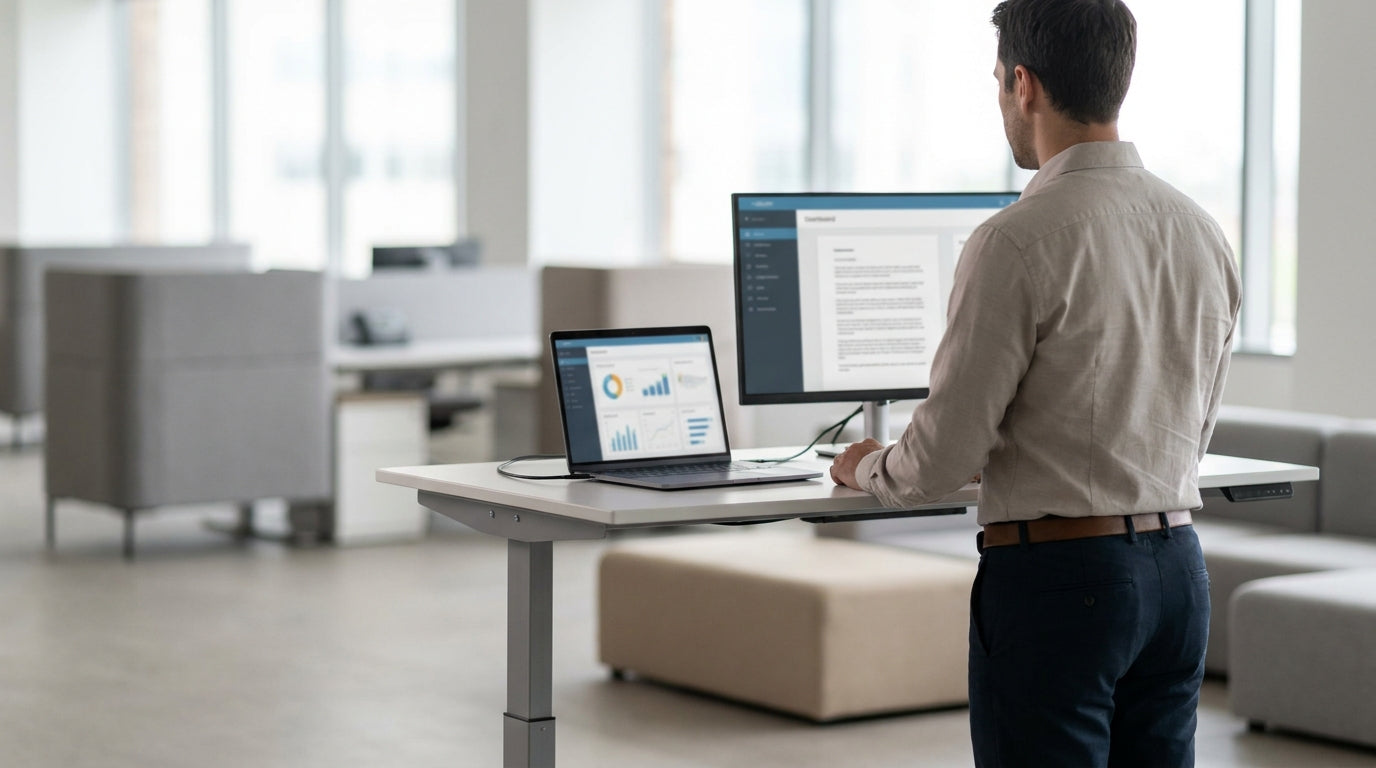
Monitors and laptops quickly crowd table space. To free up work surfaces and improve ergonomics, consider using Monitor Arms that clamp to the back or side of your Mobile Tables or sit‑stand desks. This raises screens to eye height, reduces neck strain, and opens up room for notepads, keyboards, and shared materials. Where possible, run a quick test call before meetings to check framing and lighting from the perspective of remote participants.
Audio is just as critical. Place microphones centrally and away from noisy devices such as projectors or fans, and keep speaker units directed towards participants for even sound. If you regularly change seating layouts using Flip Top Tables or Folding Tables, consider wireless microphones or beamforming ceiling arrays so you are not constantly rewiring the room. Always run a brief sound check, especially if your table configuration has changed since the last meeting.
Managing power and cables safely
Hybrid spaces rely on laptops, screens, and cameras. Without a plan for power and cabling, the room quickly becomes a trip hazard.
Begin by counting the number of devices that need power at the table: laptops, docks, phones, cameras, and any dedicated conferencing hardware. Choose tables that can easily accommodate these needs without trailing leads across walkways. If you regularly rearrange Mobile Tables or Training Tables, floor boxes combined with flexible power rails or daisy‑chain power boards can reduce clutter while keeping connections within easy reach.
Dedicated Cable Management solutions are essential for a tidy, professional appearance. Use under‑desk baskets, cable spines, and grommets to route cords neatly down table legs and away from chair wheels. On camera, a clean set‑up with hidden wiring looks more polished, while in the room it dramatically lowers the risk of accidents. Label key cables and connection points so staff can reconnect equipment quickly after reconfiguring tables or cleaning.
For teams that frequently use Folding Tables or Flip Top Tables in multi‑purpose rooms, consider portable power modules that sit on the work surface and pack away with the tables. This approach maintains flexibility without sacrificing safe, reliable power for devices. It also simplifies set‑up for visiting staff or external facilitators who may not be familiar with the room.
Supporting collaboration for in-room and remote teams
The best hybrid rooms make it easy for everyone to contribute, no matter where they are. Furniture and tools should support shared focus.
Position shared writing surfaces where both the camera and in‑room participants can see them clearly. Mobile options, such as Mobile Whiteboards, can be rolled behind key Meeting Tables or adjacent Office & Meeting Tables so annotations are visible to remote attendees. When the session changes from presenting to brainstorming, you can simply move the whiteboard into frame instead of moving the camera or rearranging the whole room.
Table layouts also shape engagement. Horseshoe or U‑shaped arrangements using Mobile Tables keep faces directed towards both the screen and one another, which helps remote colleagues read expressions and body language. For workshops and training, clusters created from Training Tables or compact Folding Tables let small groups collaborate, then quickly rotate back to plenary mode without long delays.
Finally, consider accessibility and comfort. Ensure there is adequate legroom and wheelchair access around key collaboration points, including whiteboards, displays, and central Meeting Tables. Provide a mix of seating options and easy‑to‑move tables so people can adjust the environment to suit their working style. When the physical space supports inclusion, it becomes much easier to run smooth, productive hybrid meetings that respect everyone’s time and contribution.


