

Understanding Ergonomics and Why It Matters
Ergonomics is about designing your workspace to fit your body, not the other way around. Done well, it reduces pain, fatigue and the risk of long-term injuries.
In an Australian office or home office, that usually means adjusting your desk, chair and screen so your joints sit in neutral, relaxed positions. Neutral posture keeps your spine’s natural curves, your shoulders relaxed and your wrists straight while you type or use a mouse. Over time, even small improvements can make a big difference to back pain, neck tension, headaches and eye strain.
Modern ergonomic workstation setups focus on three main zones: where you sit, where you look and where you reach. When these zones are well planned, you move less awkwardly and rely less on slouching or hunching forward. Combine this with regular movement breaks and you’ll not only feel better, you’ll often concentrate better and get more done in the same amount of time.
Whether you’re upgrading a corporate office or fine-tuning your study at home, it helps to treat ergonomics as an ongoing process. As your tasks, devices and even your body change, you may need to tweak your layout, adjust your chair or invest in a different style of desk to stay comfortable.
Choosing the Right Desk for Your Space
The desk is the anchor of your workstation, so getting the size and shape right is essential. Think about your room, your equipment and how you like to work before you buy.
If you’re working from a spare room or living area, flexible Home Office Desks are a practical starting point. These are designed to balance compact footprints with enough surface for a laptop, monitor and paperwork. For simple, streamlined layouts that suit most people, classic Straight Desks make it easy to position your screen directly in front of you and maintain a centred posture.
When you need more surface area or want to separate computer work from paperwork, different shapes can help. Corner Office Desks and L-Shaped Desks maximise usable space in a corner and keep everything within easy reach, reducing the need to twist or lean excessively. If you’re outfitting an individual workstation, purpose-built Single Person Workstations provide a defined area that’s easy to organise around your monitor, keyboard and documents.
Desk height plays a big role in comfort as well. A surface that’s too high forces your shoulders up; too low and you’ll hunch forward. Height Adjustable Workstations let you fine-tune the height for both sitting and standing, so your forearms stay roughly parallel to the floor and your elbows sit at about 90 degrees. This adjustability is especially useful if multiple people share the same desk or if you’re shorter or taller than average.
Finally, think ahead about how your desk will support your devices and cabling. A well-chosen workstation should accommodate your computer, monitor arm, keyboard and any extra equipment without forcing you into awkward positions or cluttering the leg space underneath.
Setting Up Your Chair and Sitting Posture
A good chair and correct sitting posture work together to support your spine. Without both, it’s easy to end up slouched or perching on the edge of the seat.
Look for adjustable seating that supports your lower back and encourages you to sit back into the chair. Quality Task Chairs typically offer seat height adjustment, tilt control and lumbar (lower back) support, which help you maintain a gentle S-curve in your spine. If you tend to get warm or sit for long stretches, breathable Mesh Office Chairs can improve comfort while still providing firm support.
To set up your chair, start with the height. Your feet should rest flat on the floor (or on a footrest) with your knees at about hip height or slightly below. Adjust the seat depth so there’s a small gap between the back of your knees and the front edge of the seat. This avoids pressure under the thighs and keeps blood flowing freely to your lower legs.
Next, adjust the backrest so it supports the curve of your lower back without pushing you forward. If your chair has tilt, set it so you can lean back slightly while still feeling stable; this open hip angle often reduces pressure on the lower spine. Armrests, if you use them, should be just high enough to support your forearms without lifting your shoulders. If they stop you from getting close to the desk, lower them or move the chair in and only rest your arms lightly when you’re not typing.
Even with the best ergonomic chair, sitting still all day isn’t ideal. Aim to change position regularly: lean back, shift your weight, or briefly stand and stretch every 30–45 minutes. These micro-movements help your muscles and joints recover from static postures and can prevent stiffness building up over the day.
Positioning Monitors, Keyboards and Accessories
Once your chair and desk are sorted, arrange your screen and input devices to reduce neck strain and awkward reaching. Small adjustments here can ease tension in your shoulders and wrists.
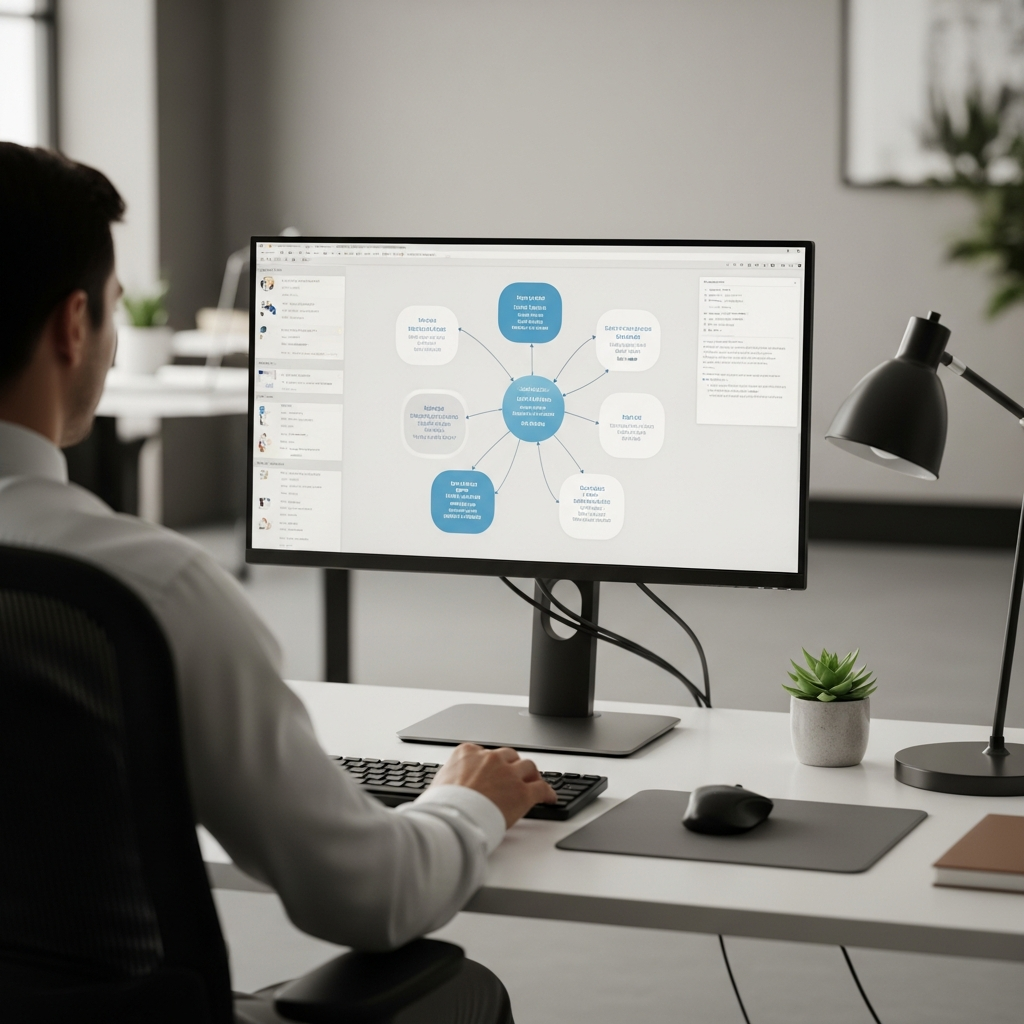
Your monitor should sit directly in front of you, about an arm’s length away, with the top of the screen roughly at or slightly below eye level. Using dedicated Monitor Arms makes this easier, letting you raise, lower or angle your screens without stacking them on books or boxes. If you use dual monitors, place your primary screen directly ahead and the secondary one to the side, or centre both if you use them equally, so you turn your head rather than twist your torso.
Keyboard and mouse placement affect your wrists and shoulders. Position the keyboard so the letters you use most sit directly in front of you and you don’t have to reach forward; your elbows should stay close to your body. Keep the mouse at the same height and right beside the keyboard, so your hand moves sideways, not forward. If you notice wrist discomfort, consider a low-profile keyboard, a mouse that fits your hand size, or a wrist rest that keeps your wrists straight rather than bent upwards.
Don’t overlook smaller accessories that support good habits. A document holder placed between the keyboard and monitor can reduce repeated neck bending when you’re transcribing text. Headsets can prevent you cradling a phone between your ear and shoulder. Good Cable Management also matters: tidy cables reduce clutter, help you maintain a clear work zone and prevent you catching your feet or chair on cords under the desk.
Eye comfort is part of ergonomics too. Reduce glare by placing monitors side-on to windows rather than directly in front or behind them, and adjust screen brightness to match the room. Following the “20-20-20” guideline—every 20 minutes, look at something 20 feet (about 6 metres) away for 20 seconds—can ease digital eye strain during long computer sessions.
Incorporating Movement and Healthy Work Habits
An ergonomic workstation isn’t just about furniture; it’s about how you use it throughout the day. Building in movement and variety is key to long-term comfort.
If you have access to Height Adjustable Workstations, alternate between sitting and standing rather than staying in one position for hours. Start with short standing periods—perhaps 15–20 minutes every hour—and adjust based on how you feel. When standing, keep your weight evenly distributed on both feet, avoid locking your knees and maintain the same neutral arm and wrist positions you use when seated.
Even without a sit-stand desk, you can add more movement into your workday. Stand to take phone calls, walk to talk to colleagues instead of emailing, or schedule quick mobility breaks between meetings. Simple stretches for your neck, chest, hips and wrists can counteract the forward-leaning posture many of us adopt while focusing on screens.
Healthy work habits also include how you organise tasks and manage your environment. Group similar tasks together so you’re not constantly swapping between keyboard, mouse, phone and paperwork in a way that creates repetitive, awkward movements. Keep frequently used items within your “primary reach zone”—the area you can reach with your elbows close to your body—to reduce overreaching. With the right mix of a suitable desk, supportive chair, well-placed equipment and regular movement, your workstation can support your productivity and your long-term health.


