

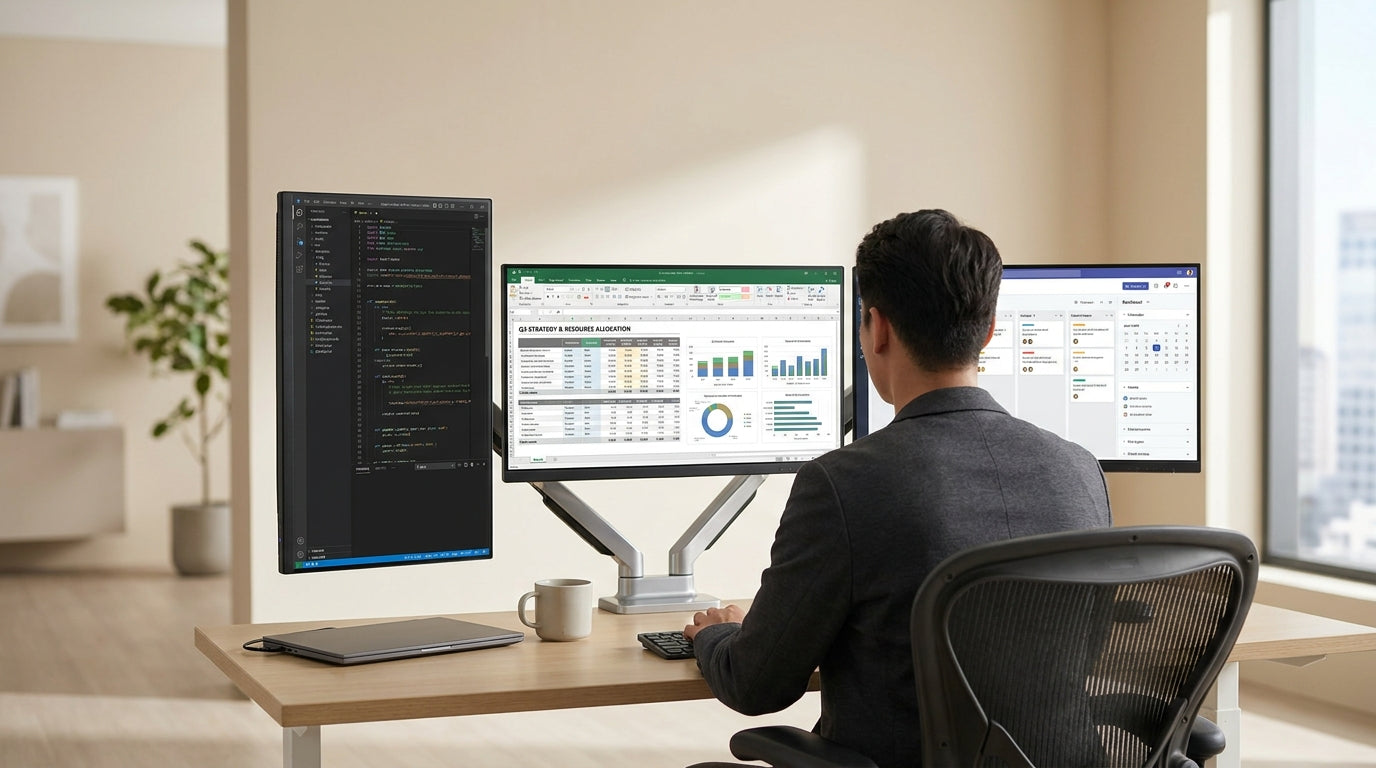
Understanding Multi‑Screen Monitor Arms
Setting up more than one screen can dramatically improve productivity, but only if your monitor arms are chosen carefully. Before you start shopping, it helps to understand the basic features and limitations.
Monitor arms are designed to raise screens off the desk, freeing up space and allowing you to position each monitor at the ideal height, distance, and angle. For multi‑screen setups, arms can be configured on a single post, in a rail system, or with separate clamp‑on units. A quality multi‑monitor arm should allow smooth adjustment without wobble, keep your screens aligned, and cope with the combined weight of all displays.
Most arms attach via a desk clamp, grommet mount (through a hole in the desk), or bolt‑through plate. Clamp and grommet mounts suit many modern home office desks and single person workstations, while bolt‑through options are common in larger commercial fit‑outs. Checking your desktop material and thickness early will help you narrow down compatible mounting styles.
For dual, triple, or even quad‑screen layouts, operators often mix landscape and portrait orientations, especially in finance, coding, and design roles. Multi‑arm systems with independent adjustment for each screen give you this flexibility, making it easier to fine‑tune your set‑up instead of compromising on one fixed position for every monitor.
Key Factors: Weight, Size, and VESA Compatibility
The most important technical details to check are weight limits, screen size range, and VESA mounting compatibility. Getting these wrong can lead to sagging arms, limited movement, or even damage.
Each arm has a rated weight range per screen, as well as an overall capacity for the entire unit. When running multiple monitors, you need to confirm that every arm can safely support the heaviest individual screen, plus any future upgrades you might plan. Overspecifying slightly is sensible; it reduces strain on gas springs and joints, which helps the arms last longer and operate more smoothly.
Screen size is usually listed as a maximum diagonal measurement the arm can comfortably support. While a dual setup with 24–27 inch displays is common, many Australian offices now standardise on 32 inches or wider. If your workspace includes shared 2 person workstations or 3 person workstations, you may need slimmer bezels and carefully sized arms so neighbouring screens don’t clash when adjusted.
VESA is a standard hole pattern on the back of most monitors (for example, 75×75 mm or 100×100 mm). Your monitors and arms must use compatible patterns, or you’ll need an adapter plate. Business‑grade displays almost always support VESA mounting, but some consumer ultrawide and all‑in‑one models don’t, so check your product specs before committing to any monitor arms bundle.
Choosing the Right Configuration for Your Workspace
Your desk layout strongly influences the type of multi‑screen arm that will work best. Think about where you sit, how you move, and how many people share the workstation.
For a single operator using two or three screens, a central pole with side‑by‑side arms often works well on compact corner workstations and standard rectangular desks. This style keeps the footprint small while allowing you to bring the primary display directly in front of you and angle secondary screens slightly inwards. If you prefer more flexibility, separate single‑screen arms can be clamped along the back edge, giving each monitor its own full range of movement.
When multiple staff share a bench with back‑to‑back 2 person or larger team workstations, consider multi‑arm systems that mount to a shared rail or central spine. These tidy up the visual line of the office and let you allocate two or more arms to each side without overcrowding the desktop. You can then mix standard monitors with laptops on VESA trays, creating ergonomic dual‑screen setups even in hot‑desk environments.
If you use sit‑stand or height adjustable workstations, make sure the arm has enough vertical reach to keep your screens at eye level when standing. Arms designed for dynamic use will move with a light touch, maintaining their position without drifting up or down. Matching the arm’s colour and finish to your existing workstation components and frame also helps the whole set‑up look cohesive rather than cobbled together.
Ergonomics, Adjustment, and Cable Management
Comfort and tidiness matter just as much as technical specs. Good ergonomics reduce fatigue, and good cable routing keeps the workspace safe and professional.
In an ergonomic multi‑screen layout, the top of each monitor should sit roughly at or just below eye height, with the main screen directly in front of you and secondary screens angled towards you. Depth adjustment is crucial; being able to pull the screens closer or push them back helps maintain a neutral neck position and avoid eye strain. Arms with tilt and rotation also let you counteract screen glare from windows and overhead lights.
When several displays are involved, cables can quickly become a mess. Look for arms with built‑in channels or clips to route power, HDMI, DisplayPort, and USB leads along the arm and down to the desk. Combining these with dedicated cable management solutions under the desk keeps cords off the floor, reducing trip hazards and making cleaning easier.
If you’re configuring a workstation that will be used for long periods, such as a trading desk or design station, pairing well‑chosen arms with a suitable desk can make a big difference. Large single person workstations and robust home office desks provide enough depth for correct viewing distance, so your arms don’t have to work as hard to position each screen comfortably.
Planning for Growth and Upgrades
Office technology rarely stays the same for long. Choosing flexible hardware now will save money and frustration when your needs change.
Consider whether you may add more screens later, upgrade to larger displays, or change how your teams work. A dual‑arm unit that can accept an additional arm, or a modular system that fits different monitor sizes, offers more long‑term value than a fixed, single‑purpose rig. This forward planning is particularly useful if you’re rolling out matching setups across rows of height adjustable workstations or shared 2 person workstations.
Think beyond the arms themselves, too. As roles evolve, staff might move from individual desks to shared benches or from standard rectangles to corner workstations. Having a common set of workstation components, including compatible arms, mounts, and rails, makes reconfiguring the office simpler and cheaper. The same applies at home: selecting arms that work across different home office desks allows you to relocate your set‑up without starting from scratch.
Finally, budget for accessories that complete the installation. Extra cable management trays, power rails, and data modules help you get the most from your new monitor arms and multi‑screen layout. A carefully planned combination of arms, desks, and accessories will keep your workspace adaptable, ergonomic, and clutter‑free for years to come.


