

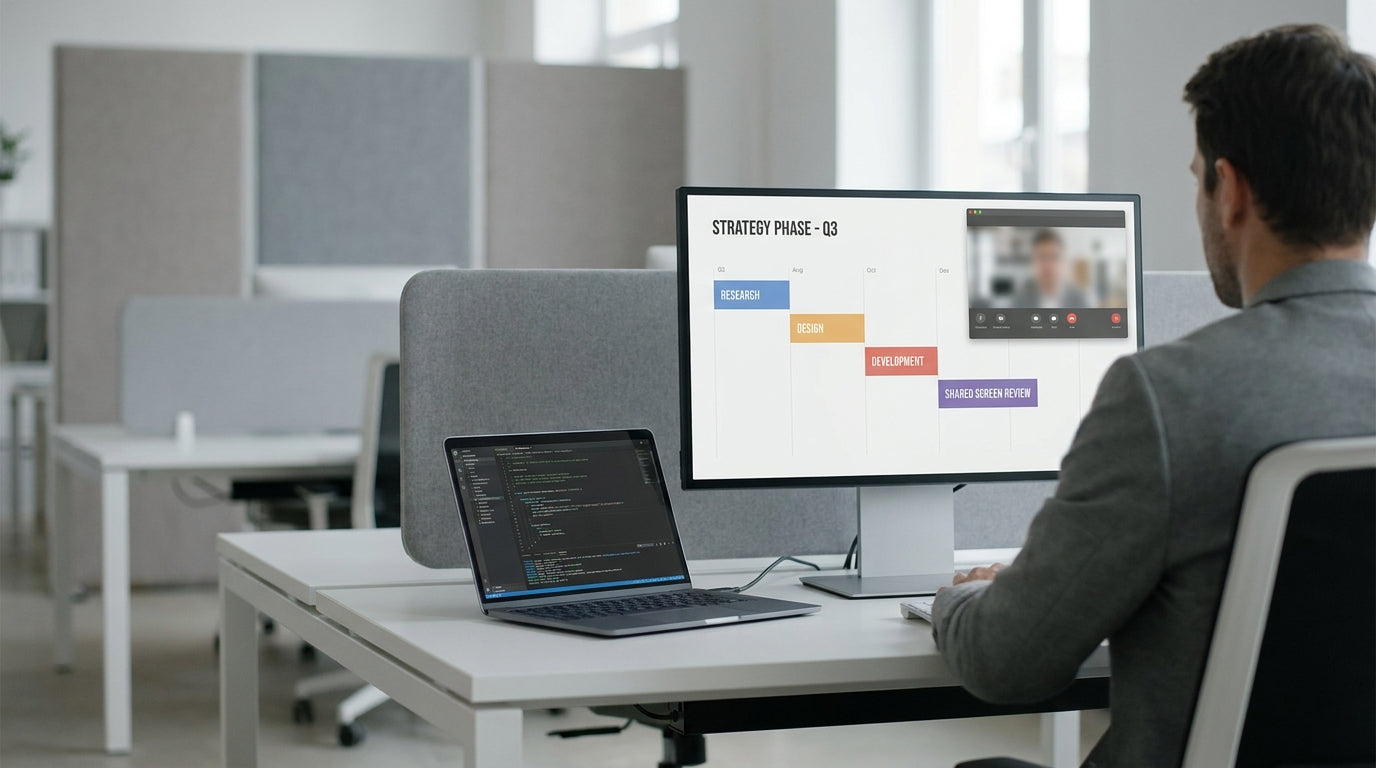
Planning a Collaborative Work Area
Before you buy any gear, you need a clear plan for how your team will actually use the shared screens. Start by mapping out who needs to collaborate, how often, and what tools they rely on day to day.
Begin with the size and shape of your space. A compact nook might suit 2 Person Workstations for focused pair work, while larger open-plan floors can support banks of desks or pod layouts. Pay attention to walkways, sightlines to screens, and access to power points so your layout feels open, not cramped.
Next, define the typical group size for collaboration. If most tasks involve three to four people huddling around a display, explore options such as 3 Person Workstations or 4 Person Workstations that make it easy for everyone to see and contribute. For agile squads or project teams working together all day, larger pods like 6 Person Workstations or even 8 Person Workstations help avoid the constant shuffling and desk swapping that kills productivity.
Finally, consider how your collaborative workstations will connect with the rest of the office. Position them close to shared resources like printers and Office & Meeting Tables so teams can switch between quick stand-ups, screen-based work, and longer workshops without disrupting others. A little planning upfront makes it far easier to add more pods later, including larger setups such as 10 Person Workstations for big project groups.
Choosing the Right Desks and Layout
The workstation itself is the backbone of your shared-screen setup. Look for furniture that balances comfort, durability, and flexibility.
Start by matching workstation size to your team structure. Smaller teams and one-on-one collaboration are well served by compact 2 Person Workstations that keep both people within easy viewing distance of one or two displays. Growing teams can scale up to 3 Person Workstations or 4 Person Workstations, which provide more surface area for laptops, sketch pads, and peripherals without swallowing the whole room.
For project-based or agile environments, pod-style desks like 6 Person Workstations and 8 Person Workstations make shared screens the natural focal point. Team members can sit around a central monitor cluster, easily glancing between each other and the content on screen. If you’re planning for multi-team collaboration or training areas, larger options such as 10 Person Workstations enable multiple users to plug in and participate without crowding.
Don’t overlook the smaller details that make collaboration smoother. Smart Workstation Components like modesty panels, divider screens, and integrated power rails can help manage privacy, acoustics, and plug-in points. Pair desk pods with nearby Office & Meeting Tables so teams can quickly move from focused screen time to whiteboarding or document review.
Setting Up Shared Screens and Monitor Arms
The way you mount and position screens will make or break your collaborative setup. Shared displays must be visible, comfortable to view, and easy to adjust.
Use quality Monitor Arms to lift screens off the desk and give your team more usable surface area. Monitor arms also make it simple to tilt, pivot, or raise displays, which is especially important when two or more people are viewing the same screen from different angles. In a 3 Person Workstation, for example, you can float a central monitor slightly higher so everyone can see clearly without craning their necks.
For larger pods such as 6 Person Workstations or 8 Person Workstations, consider a mix of personal and shared displays. Individual monitors on Monitor Arms can sit around the perimeter, with one or two bigger shared screens at the centre or at the end of the pod. This setup lets people focus when needed, then quickly push content to the shared screen for group review.
If you’re building a training or project hub with very large teams, combining central screens with generous desk space from 10 Person Workstations helps maintain visibility and comfort. Place displays at eye level, about an arm’s length away for personal use, and slightly further back for group viewing. Pair your multi-screen arrangement with adjacent Office & Meeting Tables so participants can spread out materials while still seeing shared content.
Managing Cables, Power, and Components
Shared workstations can quickly turn into a tangle of leads if you ignore cable and power planning. Clean, safe wiring is essential for both safety and ease of use.
Good Cable Management keeps cords off the floor and out of the way, reducing trip hazards and making cleaning easier. Use under-desk trays, vertical cable spines, and grommets to route power and data neatly from floor boxes to your desks. When pairing with 2 Person Workstations or 3 Person Workstations, a single, well-organised cable path is usually enough to serve both users without clutter.
Larger pods like 4 Person Workstations, 6 Person Workstations, and beyond have more devices and therefore more potential mess. Plan plenty of power outlets and data ports along the spine or centre of the pod, then use purpose-built Workstation Components such as integrated power rails, flip boxes, and cable ports to make connections easy to reach. This avoids the constant plugging and unplugging that can damage equipment and slow teams down.
Don’t forget secondary spaces that support collaboration. Nearby Office & Meeting Tables can benefit from discreet Cable Management solutions too, keeping HDMI leads, chargers, and adapters tidy. For very large setups like 8 Person Workstations and 10 Person Workstations, centralising power and data in one managed hub makes maintenance and upgrades far simpler.
Designing for Comfort, Flexibility, and Growth
A collaborative workstation should be comfortable today and adaptable tomorrow. Prioritise ergonomics and future expansion when making decisions.
Ergonomics simply means designing the space to support natural body posture. Adjustable Monitor Arms let users position displays at the right height, while the depth of your 2 Person Workstations or 4 Person Workstations should allow for comfortable keyboard and mouse placement. Paired with quality chairs and good lighting, these small details reduce strain during long collaborative sessions.
Flexibility comes from choosing modular furniture and accessories. With a mix of Workstation Components, you can reconfigure 3 Person Workstations into larger pods or break bigger clusters like 6 Person Workstations into smaller units as teams change. Supplement pods with mobile Office & Meeting Tables so staff can quickly create breakout areas, war rooms, or casual huddle spots.
As your organisation grows, you may need to add more seats around existing shared screens. Planning with scalable systems such as 8 Person Workstations and 10 Person Workstations makes expansion far less disruptive. Combined with consistent Cable Management and reusable Monitor Arms, your collaborative workstations can evolve smoothly as technology and team structures change.


