

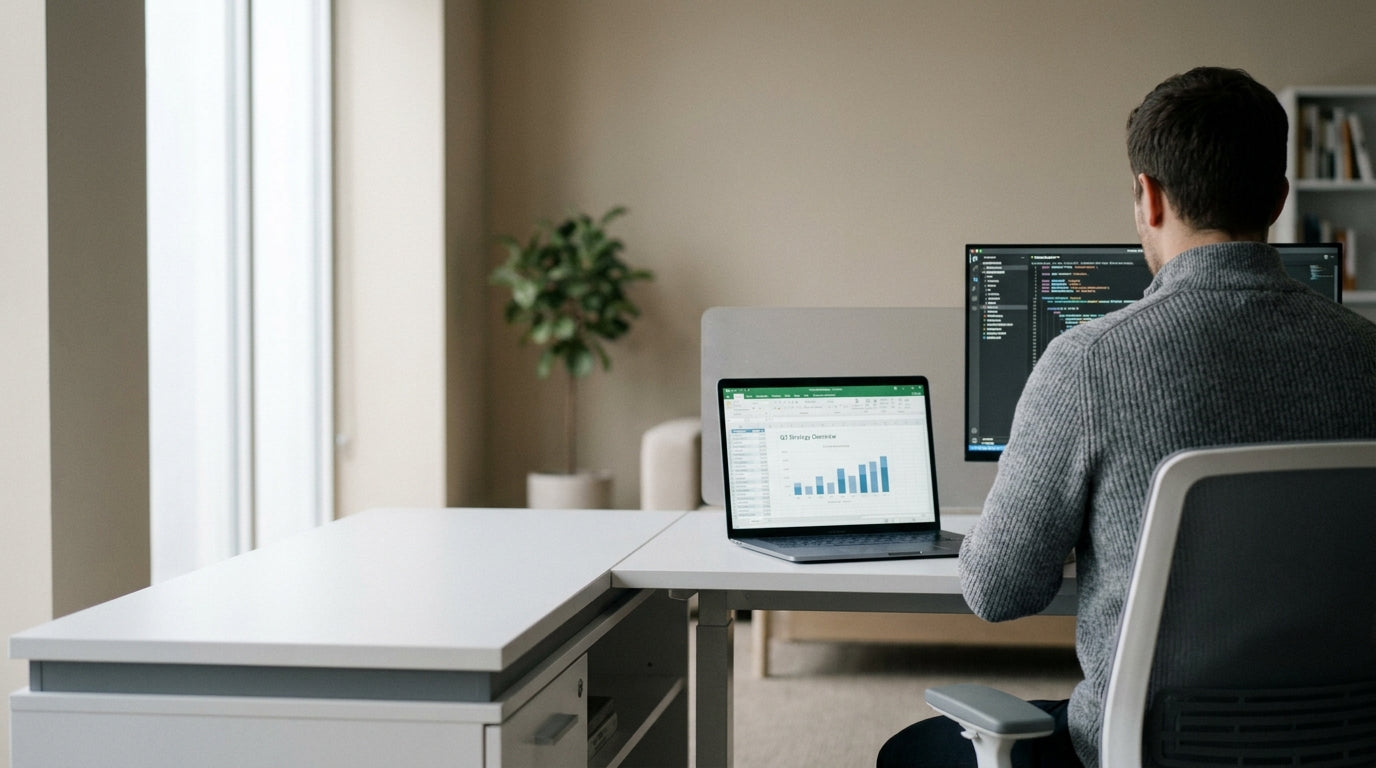
Planning Your Corner Layout for Maximum Productivity
L-shaped workspaces shine when they’re matched to the room and the way you work. Start by thinking about where you’ll place your screen, paperwork, and any shared equipment.
The first decision is where the “return” (the short side of the L) will sit. If you’re right-handed, many people prefer the return on the right to keep the main desk clear for writing and mousing; left-handers often flip this. Measure the room, skirting boards, and power points so the desk doesn’t block windows, doors, or drawers you need to access daily. A well‑planned layout also keeps you facing natural light rather than having it shine directly onto your monitor.
Next, consider traffic flow. Will other people need to walk behind you, access a filing cabinet, or join you for short discussions? Position your L-Shaped Desks so the chair can roll back easily without hitting walls or storage units. If you’re fitting out a bay of Corner Workstations, mirror the layout so staff aren’t bumping into each other when they stand up.
Finally, match the footprint of the workstation to the room size. In home offices or compact spaces, a more modest return length keeps the area from feeling cramped, while larger corporate floors can comfortably accommodate bigger Single Person Workstations and even integrated 2 Person Workstations that share screens, storage, or meeting zones.
Choosing the Right Desk, Seating, and Components
The furniture you choose has a huge impact on comfort and long-term ergonomics. Invest in pieces that are sturdy, adjustable, and built for daily use.
Start with the desk frame and surface. Look for commercial-grade materials, smooth edges, and enough depth for a full keyboard, mouse, and monitor at the correct distance from your eyes. If you’d like to alternate between sitting and standing, consider Height Adjustable Workstations in an L configuration so you don’t lose surface area while gaining flexibility. Quality Workstation Components such as modesty panels, returns, and under-desk storage can then be mixed and matched to suit each user.
Task seating is just as important as the desk. A good office chair should offer lumbar (lower back) support, seat height adjustment, and a backrest that tilts to support different postures during the day. For warm Australian climates or non-air‑conditioned spaces, Mesh Office Chairs provide breathability, while traditional Task Chairs with fabric or leather finishes can suit more formal offices.
Don’t forget accessories that keep everything within comfortable reach. Items like CPU holders, under‑desk storage, and add‑on shelves from dedicated Workstation Components ranges allow you to extend the setup without replacing the whole desk. Matching your components from the same collection also keeps finishes, colours, and heights consistent across the office.
Setting Up an Ergonomic Work Zone
An ergonomic workstation reduces strain on your neck, shoulders, and wrists. Think in terms of zones: items you use all the time should sit closest to you.
Place your primary screen directly in front of you, with the top of the monitor roughly at eye level. Many people achieve this more easily using adjustable Monitor Arms, which let you move screens up, down, and side‑to‑side without stacking them on books. The main keyboard and mouse should sit on the longer side of the L, positioned so your elbows are at about a 90‑degree angle and your forearms are parallel to the floor.
Reserve the return for secondary tasks: paperwork, docking stations, label printers, or a phone. This creates a natural swivel between computer work and other tasks, helping you vary your posture during the day. For solo users, this layout works well on compact Single Person Workstations, while teams may prefer slightly larger 2 Person Workstations laid out in mirrored L shapes so everyone maintains their ergonomic “bubble”.
Check your chair setup last. Your feet should rest flat on the floor (or a footrest), with your knees at or just below hip level. If you’re using a sit‑stand configuration from a Height Adjustable Workstations range, set the standing height so your forearms still rest comfortably on the desk without shrugging your shoulders. Review this positioning every few weeks; small adjustments often relieve discomfort before it becomes a bigger issue.
Managing Cables and Tech Cleanly
Technology can quickly clutter an otherwise tidy corner desk. A clean setup saves time and makes your space safer.
Begin with a plan for power and data. Work out where your power points, network ports, and any floor boxes are located before finalising the desk position. Use dedicated Cable Management solutions such as cable trays, vertical umbilicals (flexible cable spines), and grommets to route leads off the floor and under the worktop. This not only looks better, it also helps prevent tripping hazards and accidental disconnections.
Mounting screens on Monitor Arms frees up valuable desk space and allows cables to follow a neat, elevated path. Pair this with under‑desk power boards and labelled Velcro ties so you can add or remove equipment without dismantling the whole setup. When combined with modular Workstation Components, you can reconfigure your technology layout as your needs change.
For multi-user areas or shared Corner Workstations, it’s worth standardising how tech is laid out. Keep docking stations, phone chargers, and shared devices on the return or common side of the L, leaving the main work edge clear. This consistent cable plan makes it easier for IT to support the space and for team members to move between desks without confusion.
Adapting Your Setup for Different Workstyles
No two people work exactly the same way. Tailor each workstation to the specific tasks, team, and space.
For focused, individual roles such as accounting or design, a single large surface with minimal distractions works best. In this case, a spacious L-Shaped Desks layout with storage on the return and a clear main side promotes deep work. Pair it with supportive Task Chairs or breathable Mesh Office Chairs to keep users comfortable over long periods.
Collaborative teams benefit from mirrored or back‑to‑back layouts using 2 Person Workstations or clusters of Corner Workstations. This arrangement allows quick conversations without over‑crowding, especially when combined with acoustic screens. Shared Monitor Arms and consistent Cable Management help maintain a tidy look even as people plug in laptops and devices.
Hybrid and hot‑desking environments call for maximum flexibility. Consider specifying Height Adjustable Workstations in an L configuration, paired with movable storage and modular Workstation Components that can shift as teams grow or projects change. With the right planning, the same footprint can support everything from quiet single‑user setups to dynamic shared hubs over the life of your office fit‑out.


